Home › Content calendar template for Google Sheets
Content calendar template for Google Sheets
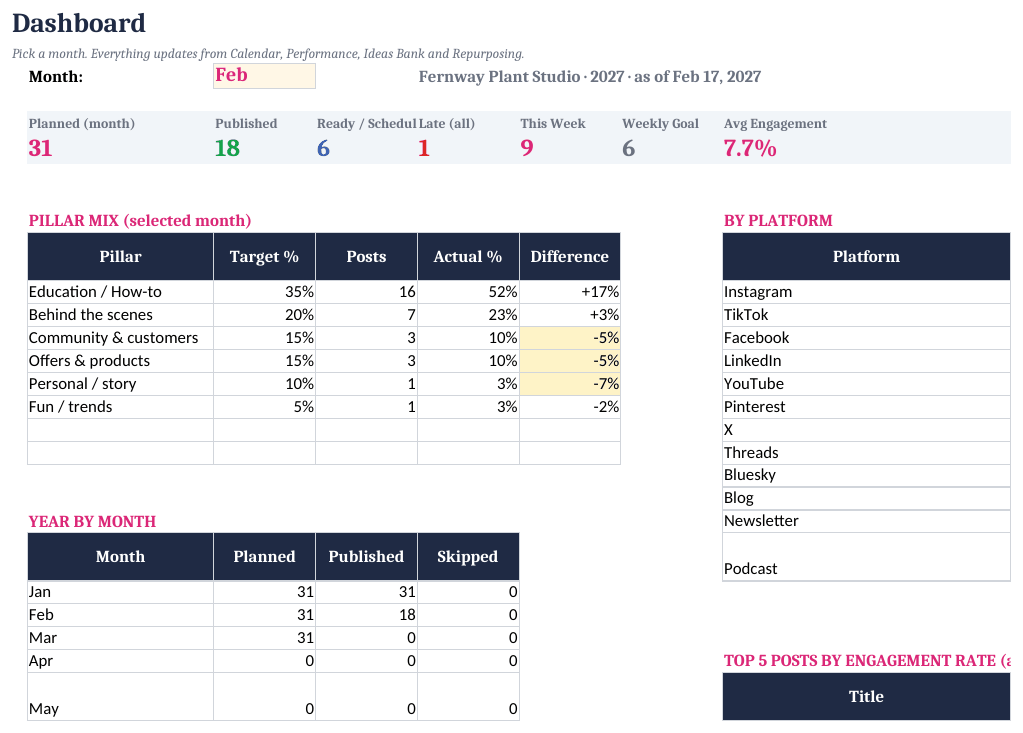
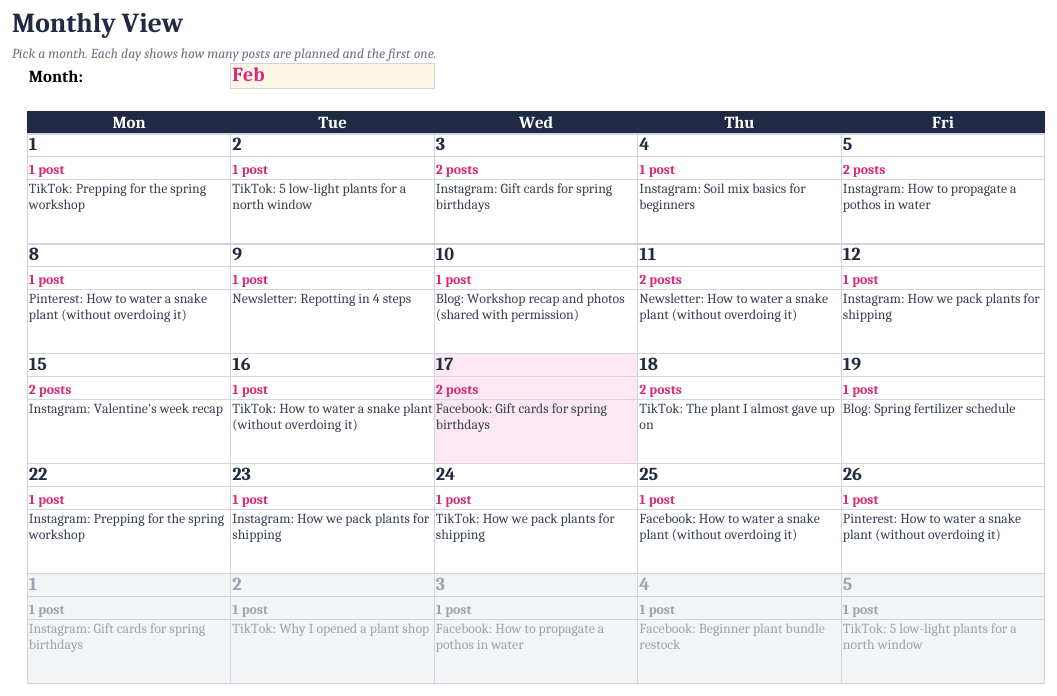
A content calendar is a list of posts with a date and a status. Everything else (monthly view, pillar balance, engagement rate) is extra that helps once the basics are in place.
How to set it up
- Set up your brand. On Settings, enter the brand name, year, weekly post goal and 3–6 content pillars with target shares.
- Fill the Ideas Bank. Dump post ideas into the Ideas Bank with a pillar and format.
- Schedule a week. Move 4–7 ideas onto next week's Calendar with a date, platform and status.
- Batch and publish. Draft several posts at once, set them to Ready or Scheduled, then Published with a link.
- Log results. A few days after posting, enter reach and engagement on the Performance tab; engagement rate is calculated.
Columns that matter
Date, platform, pillar (the theme of the post), format, title or hook, status (Idea → Drafting → Ready → Scheduled → Published), and a link once it's live. One row per post per platform, so each one has its own status and results.
Flags and engagement rate
Late flag:        =IF(AND(A2<TODAY(),H2<>"Published",H2<>"Skipped"),"Late","")
Engagement rate:  =(likes+comments+shares+saves)/reach
Platforms define reach, impressions and views differently, so compare posts within a platform rather than across platforms.
Content Calendar & Social Media Planner 2027 ($17)
The ready-made template shown in the screenshots: BLANK and SAMPLE files, a quick-start PDF, no macros. One-time purchase on Whop.
See it on WhopFAQ
Does it post for me?
No. It's a planning spreadsheet and doesn't connect to any social account.
Can a team use it?
Yes. Share it in Google Sheets and use the Owner column.